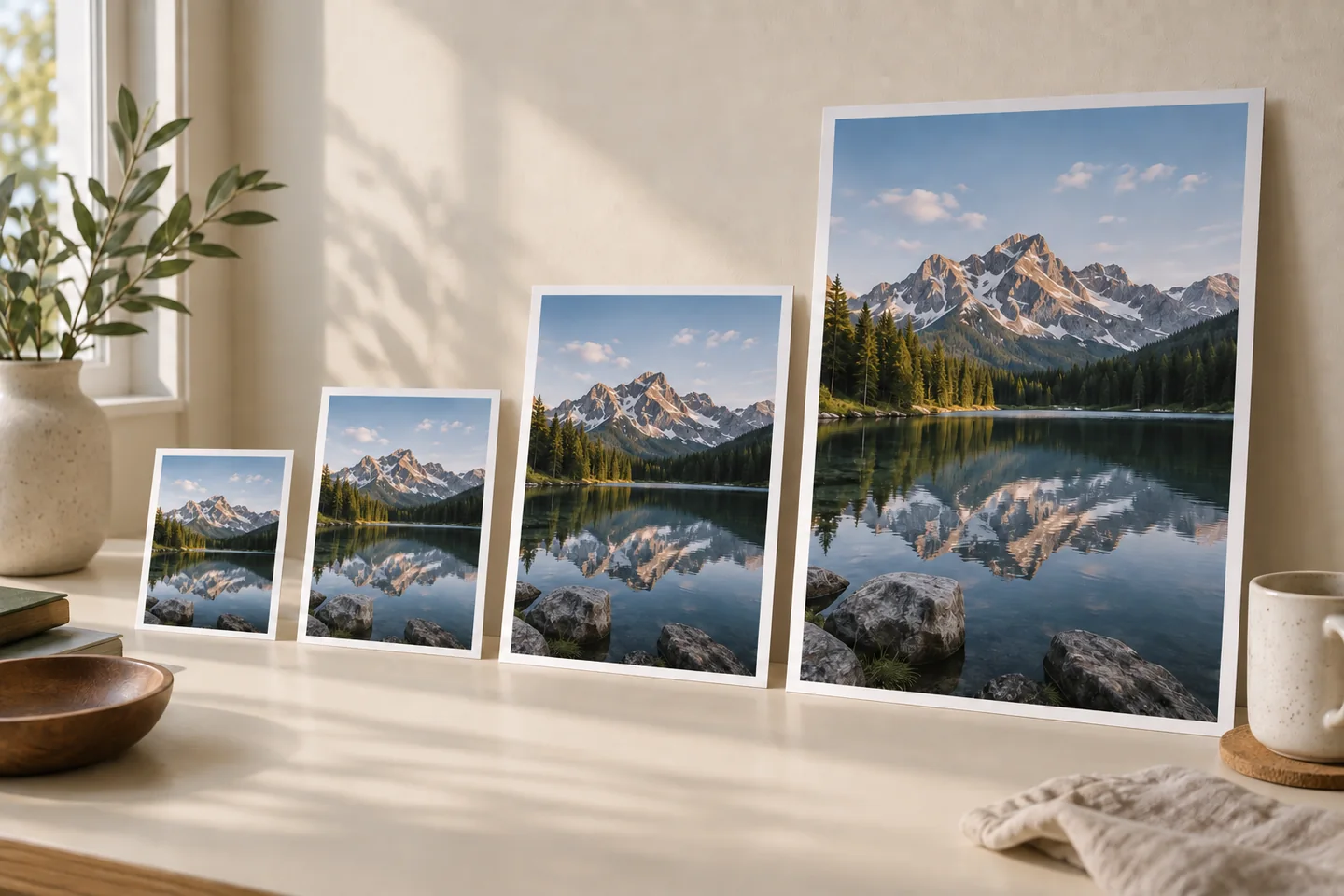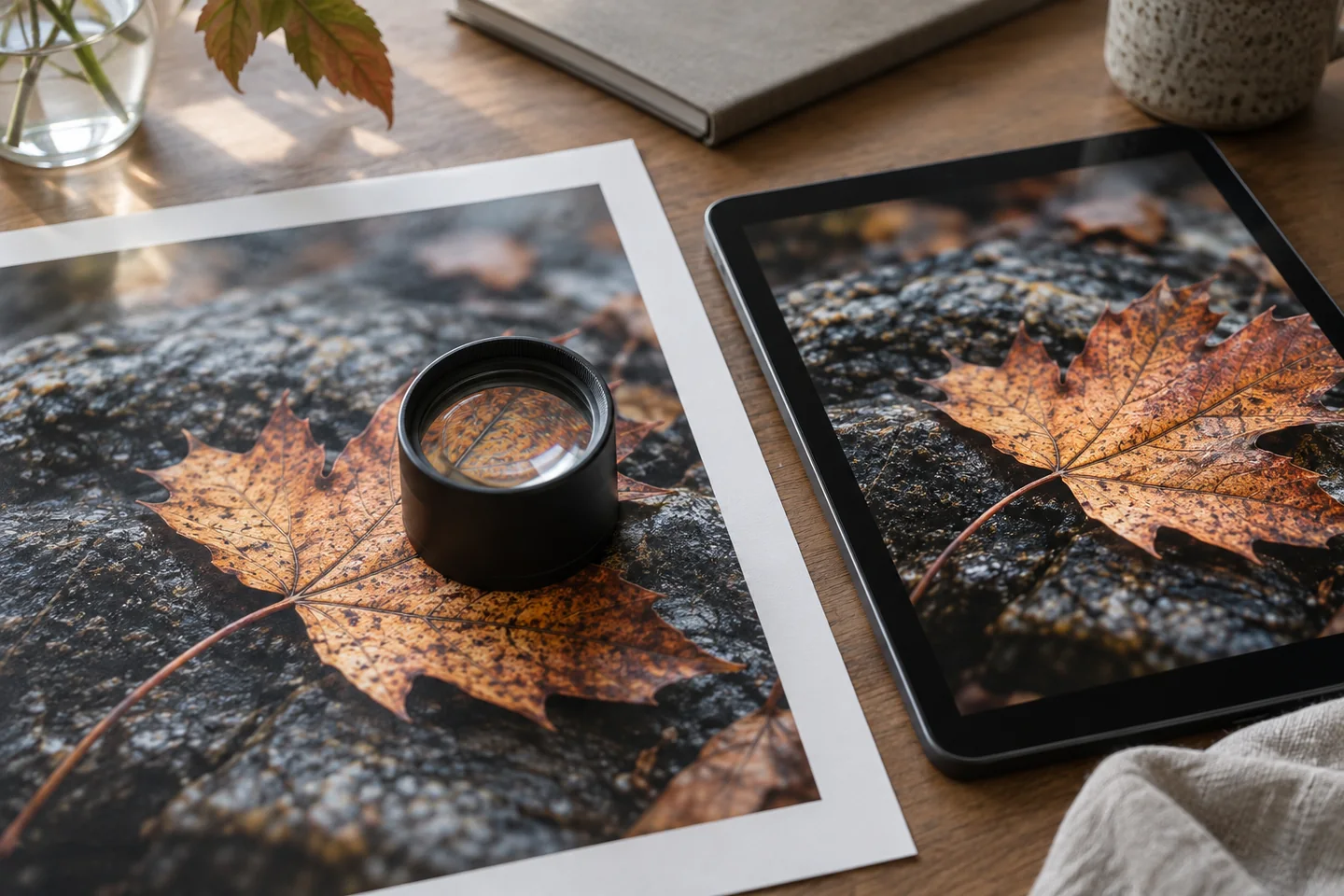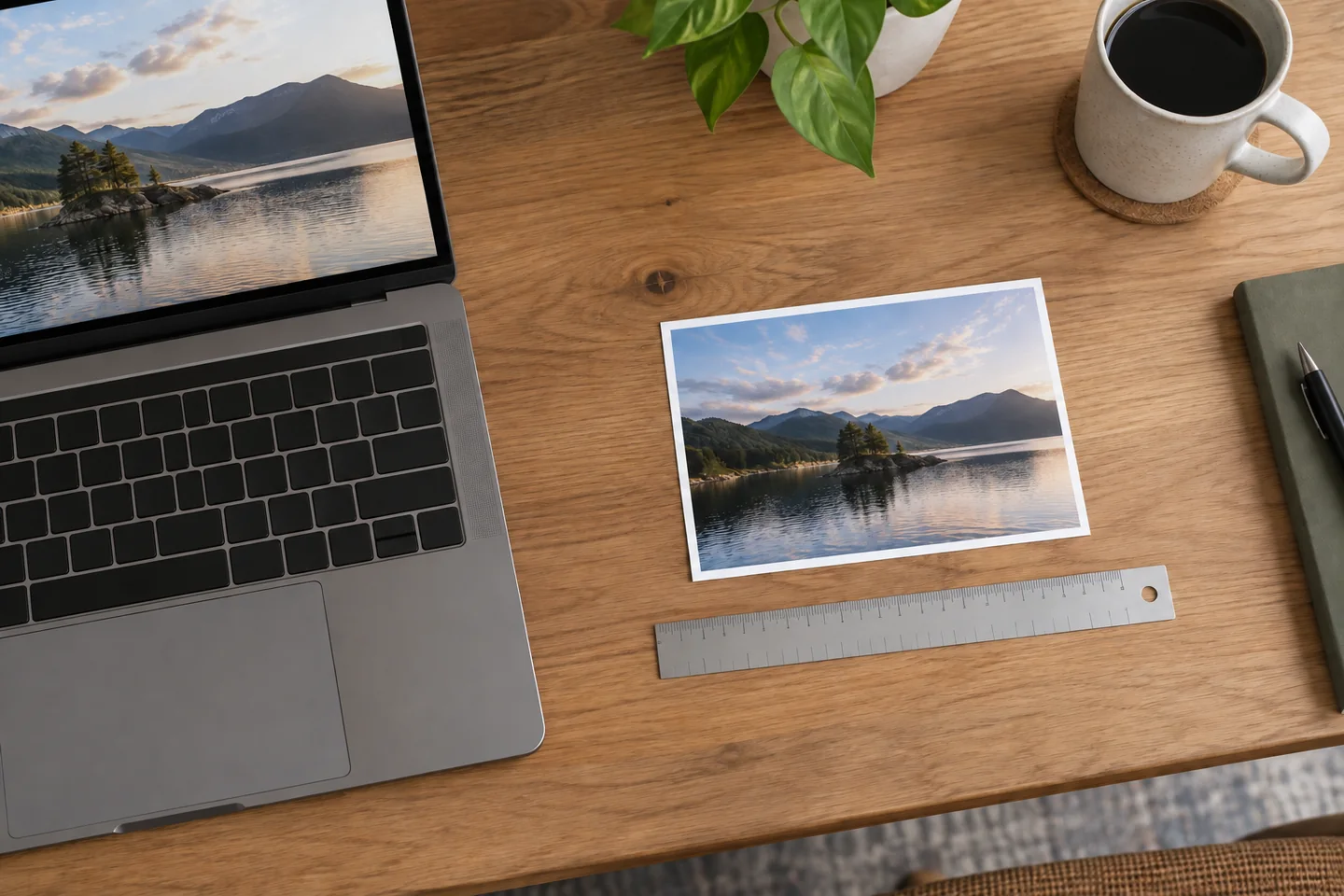
Learning how to convert pixels to inches starts with one important fact: pixels do not have a fixed physical size. You need to know the image or output resolution in pixels per inch, usually shortened to PPI, before you can calculate an inch measurement.
The formula is simple: divide the number of pixels by the PPI. A 1,200-pixel image is 4 inches wide at 300 PPI, 8 inches wide at 150 PPI, and 12.5 inches wide at 96 PPI. The file contains the same number of pixels in every case, but those pixels are distributed across different physical lengths.
This guide explains the formula, shows each calculation step, provides conversion charts, and clarifies how screen measurements differ from printed image sizes.
Quick Conversion Formula
Use this formula to convert a pixel measurement into inches:
Inches = Pixels ÷ PPI
For example, convert 1,800 pixels at 300 PPI:
1,800 ÷ 300 = 6 inches
The same calculation must be performed separately for an image’s width and height.
For an image measuring 1,800 × 1,200 pixels at 300 PPI:
-
Width: 1,800 ÷ 300 = 6 inches
-
Height: 1,200 ÷ 300 = 4 inches
-
Physical size: 6 × 4 inches
If the PPI is unknown, there is no single physical inch measurement. The same pixel dimensions can produce several valid output sizes.
Why Pixels Need a PPI Value
A pixel is one sample of color in a digital raster image. The abbreviation “px” describes the number of digital samples across an image or interface, not a fixed measurement such as an inch or centimeter.
PPI tells you how densely those pixels will be placed. A 300 PPI image uses 300 pixels along every linear inch. A 150 PPI image uses only 150 pixels across that same distance.
Suppose an image is 900 pixels wide:
-
At 300 PPI, it is 3 inches wide.
-
At 150 PPI, it is 6 inches wide.
-
At 100 PPI, it is 9 inches wide.
The pixel count does not change. Only the number of pixels assigned to each inch changes.
This relationship is especially important for printing. Placing more pixels into each inch usually produces finer detail, while spreading the same pixels across a larger print reduces the effective resolution.
PPI can also describe the physical density of a display, but an image’s print PPI and a monitor’s hardware PPI are not automatically the same.
How to Convert Pixels to Inches Step by Step
The calculation takes three short steps.
1. Find the Pixel Measurement
Check the image properties or open the file in an image editor to find its pixel dimensions. They may appear as:
2400 × 3000 px
The first value is normally the width, and the second is the height.
2. Choose the Correct PPI
Select a PPI that matches the intended use. Common working values include:
-
72 PPI for some legacy digital workflows
-
96 PPI for CSS reference conversions
-
150 PPI for drafts and some large prints
-
240 PPI for good photo output
-
300 PPI for detailed, close-viewed prints
A printer, publisher, or production service may provide its own requirement. Use that specification when available.
3. Divide Each Pixel Dimension by the PPI
For a 2400 × 3000-pixel image at 300 PPI:
Width: 2400 ÷ 300 = 8 inches
Height: 3000 ÷ 300 = 10 inches
The image can therefore produce an 8 × 10-inch output at 300 PPI without changing its pixel dimensions.
This is the core method for how to convert pixels to inches for photos, scanned documents, artwork, and print layouts.
Pixels-to-Inches Conversion Chart
The following table shows how common pixel measurements convert at 72, 96, 150, and 300 PPI. Each result represents one dimension.
| Pixels | At 72 PPI | At 96 PPI | At 150 PPI | At 300 PPI |
|---|---|---|---|---|
| 300 px | 4.17 in | 3.13 in | 2 in | 1 in |
| 600 px | 8.33 in | 6.25 in | 4 in | 2 in |
| 900 px | 12.5 in | 9.38 in | 6 in | 3 in |
| 1200 px | 16.67 in | 12.5 in | 8 in | 4 in |
| 1500 px | 20.83 in | 15.63 in | 10 in | 5 in |
| 1800 px | 25 in | 18.75 in | 12 in | 6 in |
| 2400 px | 33.33 in | 25 in | 16 in | 8 in |
| 3000 px | 41.67 in | 31.25 in | 20 in | 10 in |
| 3600 px | 50 in | 37.5 in | 24 in | 12 in |
These are mathematical output sizes. They do not guarantee that every image will look equally sharp at the listed dimensions. Source quality, focus, compression, sharpening, printer performance, paper, and viewing distance can all affect the final result.
Worked Pixel-to-Inch Examples
Different examples help show why the selected PPI matters more than the arithmetic.
Example 1: Convert 1920 Pixels at 96 PPI
Use the standard formula:
Inches = Pixels ÷ PPI
Substitute the values:
1920 ÷ 96 = 20 inches
At 96 PPI, 1920 pixels represents 20 inches. In a CSS calculation, 1920 CSS pixels also equals 20 CSS inches.
This does not guarantee that the measurement will be exactly 20 physical inches across every display. Browser zoom, operating-system scaling, and device pixel density affect physical presentation.
Example 2: Convert 1200 Pixels at 300 PPI
1200 ÷ 300 = 4 inches
A 1,200-pixel dimension can produce 4 inches at 300 PPI. If an image measures 1200 × 1800 pixels, its complete size at 300 PPI is:
-
Width: 1200 ÷ 300 = 4 inches
-
Height: 1800 ÷ 300 = 6 inches
The result is a standard 4 × 6-inch photo.
Example 3: Convert 1224 Pixels at Several Resolutions
At 72 PPI:
1224 ÷ 72 = 17 inches
At 96 PPI:
1224 ÷ 96 = 12.75 inches
At 150 PPI:
1224 ÷ 150 = 8.16 inches
At 300 PPI:
1224 ÷ 300 = 4.08 inches
These answers are all correct. Each one assumes a different pixel density.
Example 4: Find the Print Size of a 4000 × 3000 Image
At 300 PPI:
-
Width: 4000 ÷ 300 = 13.33 inches
-
Height: 3000 ÷ 300 = 10 inches
The calculated output is 13.33 × 10 inches. If the required frame is 12 × 10 inches, the image may need slight cropping because its aspect ratio does not exactly match the frame.
Choosing the Right PPI
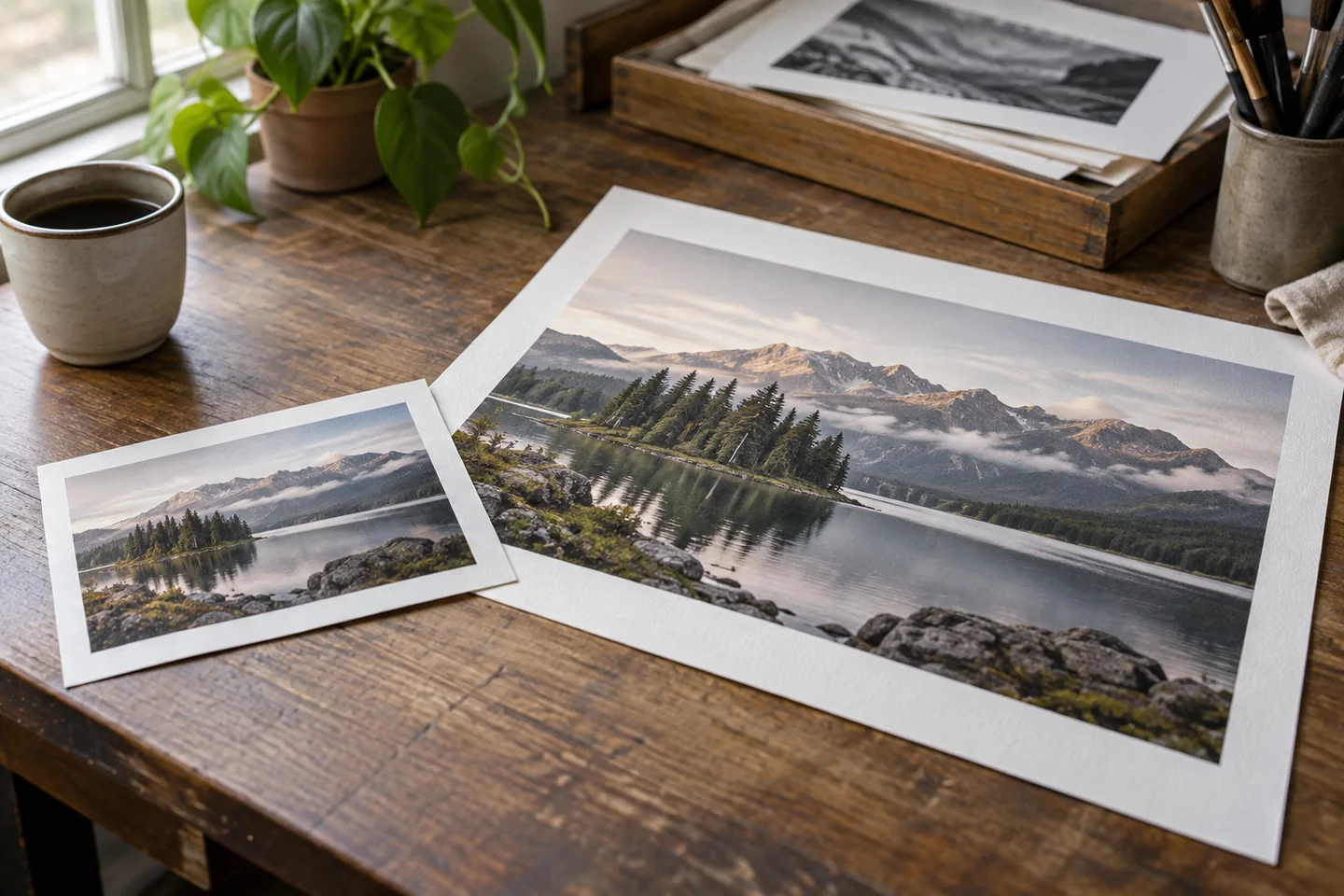
The formula cannot choose the resolution for you. That decision depends on the intended output.
For Detailed Photo Printing
A target near 300 PPI is widely used for photographs and printed materials viewed at close range. It provides a strong level of detail when the source image is sharp and contains enough pixels.
A 3000-pixel-wide image becomes 10 inches wide at 300 PPI:
3000 ÷ 300 = 10 inches
For Good General Print Quality
Values around 200 to 240 PPI may work well for many prints. The acceptable level depends on the subject, printer, paper, and viewing conditions.
At 240 PPI, the same 3000-pixel image becomes:
3000 ÷ 240 = 12.5 inches
For Posters and Distant Viewing
Large posters, signs, and banners may use a lower effective PPI because they are normally viewed from farther away. A resolution near 100 to 150 PPI can be suitable in some large-format workflows.
At 150 PPI:
3000 ÷ 150 = 20 inches
Always check the printer’s specifications. Some providers have file requirements based on their equipment, materials, and expected viewing distance.
For Websites and CSS Layouts
Web images are usually sized according to their pixel dimensions and displayed layout, not a physical print measurement. CSS defines one inch as 96 CSS pixels, but that relationship uses reference units.
For website performance and sharpness, consider the image’s displayed width, responsive layout, device pixel ratio, compression, and file size instead of relying only on embedded PPI metadata.
PPI vs. DPI in the Conversion
PPI and DPI are related terms, but they measure different things.
| Term | Full Name | Measures |
|---|---|---|
| PPI | Pixels per inch | Digital image or display pixels |
| DPI | Dots per inch | Printer dots placed on paper |
The pixels-to-inches formula technically uses PPI because the starting measurement is a number of pixels.
DPI describes printer output. A printer can use multiple dots of ink to reproduce the color of one image pixel, so an image at 300 PPI may be printed by a device operating at a much higher DPI.
In everyday print instructions, people often say “300 DPI image” when they mean an image prepared at 300 PPI. If a print provider asks for artwork at 300 DPI, it usually expects pixel dimensions that deliver an effective resolution of 300 pixels per inch at the final print size. Confirm the provider’s terminology if its specifications are unclear.
CSS Pixels and Physical Screen Inches
CSS uses a fixed reference relationship:
96 CSS pixels = 1 CSS inch
This makes CSS unit conversion predictable. Under that definition:
-
96 px = 1 in
-
192 px = 2 in
-
480 px = 5 in
-
960 px = 10 in
A CSS pixel is not always one hardware pixel. High-density displays may use several physical pixels to draw a single CSS pixel. A browser can also adjust page rendering through zoom, while the operating system may apply display scaling.
Because of these factors, a box declared as width: 96px is one inch in CSS calculations but may not measure one physical inch with a ruler on every screen.
Use 96 PPI when converting CSS reference units. Use the display’s actual physical PPI only when you need to calculate the real size of hardware pixels on a specific screen.
How to Convert Both Width and Height
A complete image has two pixel dimensions, so calculate each side separately using the same PPI.
For an image measuring 3600 × 2400 pixels at 300 PPI:
Width: 3600 ÷ 300 = 12 inches
Height: 2400 ÷ 300 = 8 inches
The output size is 12 × 8 inches.
Using the same PPI for both dimensions preserves the image’s aspect ratio. Do not calculate the width at one PPI and the height at another. That would describe a distorted output rather than the original image.
If your target print has a different aspect ratio, you have three main options:
-
Crop part of the image.
-
Add borders or intentional empty space.
-
Choose another print size with a matching shape.
Stretching the width or height independently can make people, objects, and text look unnaturally wide or narrow.
Converting Inches Back to Pixels
The reverse calculation is useful when you know the required physical size and need to create or export the correct pixel dimensions.
Use this formula:
Pixels = Inches × PPI
For a 5 × 7-inch print at 300 PPI:
Width: 5 × 300 = 1500 pixels
Height: 7 × 300 = 2100 pixels
The required file is 1500 × 2100 pixels.
Here are several standard photo sizes at 300 PPI:
| Print Size | Required Pixel Dimensions |
|---|---|
| 4 × 6 in | 1200 × 1800 px |
| 5 × 7 in | 1500 × 2100 px |
| 8 × 8 in | 2400 × 2400 px |
| 8 × 10 in | 2400 × 3000 px |
| 8.5 × 11 in | 2550 × 3300 px |
| 11 × 14 in | 3300 × 4200 px |
| 12 × 18 in | 3600 × 5400 px |
These calculations describe the minimum mathematical pixel dimensions at the stated PPI. A print provider may require bleed, cropping space, or other production allowances.
Does Changing PPI Change the Image?
Changing the PPI metadata does not always change the pixel dimensions.
Suppose an image is 3000 pixels wide. Without resampling:
-
At 300 PPI, it is 10 inches wide.
-
At 150 PPI, it is 20 inches wide.
-
At 96 PPI, it is 31.25 inches wide.
The file still contains 3000 pixels. Only its intended physical output size changes.
When resampling is enabled, the software adds or removes pixels to maintain a chosen physical size at a new PPI. Increasing the number of pixels is called upsampling. Reducing it is called downsampling.
Upsampling uses interpolation to estimate new pixel values. It can make the file larger and sometimes improve the appearance of an enlargement, but it cannot perfectly recreate detail that was never captured. Downsampling removes pixel information and should be done carefully if the larger original may be needed later.
Check the resampling option before changing resolution in Photoshop or another image editor. This tells you whether you are changing only the print interpretation or modifying the actual pixel data.
Mistakes That Produce the Wrong Answer
Converting Without a PPI Value
Pixels alone do not determine inches. You must state or select the density used for the conversion.
Multiplying Instead of Dividing
To convert pixels into inches, divide by PPI. Multiplication is used for the reverse conversion from inches to pixels.
Treating 96 PPI as a Universal Screen Density
The 96 value is useful for CSS reference units, but modern screens have many different physical pixel densities.
Using 72 PPI for Every Web Image
Browsers generally display images according to their pixel dimensions and CSS layout. Merely setting an image to 72 PPI does not make it more suitable for the web.
Confusing Printer DPI with Image PPI
A printer’s dot density and an image’s pixel density are not the same measurement. Use image PPI for physical-size calculations.
Ignoring the Second Dimension
Converting only the width does not tell you the complete image size. Calculate the height with the same PPI.
Assuming a Larger Print Will Keep the Same Detail
Increasing the physical size lowers the effective PPI when the pixel count remains unchanged. The larger print may appear softer when viewed closely.
Frequently Asked Questions
What is the easiest way to convert pixels to inches?
Divide the pixel measurement by the intended PPI. For example, 2400 pixels divided by 300 PPI equals 8 inches. If the image has both width and height values, divide each dimension separately by the same PPI.
How many pixels are in one inch?
The answer depends on the selected density. One inch contains 72 pixels at 72 PPI, 96 pixels at 96 PPI, 150 pixels at 150 PPI, and 300 pixels at 300 PPI. In CSS, one reference inch is defined as 96 CSS pixels.
How do I convert pixels to inches at 300 PPI?
Divide the number of pixels by 300. A 1200-pixel dimension becomes 4 inches, 1800 pixels becomes 6 inches, and 3000 pixels becomes 10 inches. Apply the calculation separately to the image width and height.
What PPI should I use for printing?
A target of 300 PPI is common for detailed prints viewed closely. Values around 200 to 240 PPI can still produce good results, while large posters may use a lower effective resolution because they are viewed from farther away. Follow the print provider’s requirements when available.
Is 96 pixels always one physical inch?
No. Ninety-six CSS pixels equal one CSS reference inch, but they may not occupy one physical inch on a particular display. Hardware pixel density, device pixel ratio, browser zoom, and operating-system scaling affect the physical result.
Can I find inches if I do not know the PPI?
You can calculate several possible sizes, but you cannot determine one exact physical measurement without a PPI or another physical reference. A 1200-pixel image is 4 inches at 300 PPI and 8 inches at 150 PPI.
Does changing an image from 72 PPI to 300 PPI improve it?
Changing only the PPI metadata does not add detail. It reduces the calculated print size while keeping the same pixels. If resampling is enabled, software creates additional pixels through interpolation, but those estimated pixels do not guarantee genuine new detail.
How can I find an image’s maximum print size?
Choose the lowest effective PPI that meets your quality needs, then divide the image’s width and height in pixels by that value. For example, a 3600 × 2400 image at 300 PPI produces 12 × 8 inches. At 200 PPI, it produces 18 × 12 inches.
Use the Formula With the Right Context
The reliable method for how to convert pixels to inches is to divide each pixel dimension by the intended PPI. Use 300 PPI for many detailed print calculations, a lower value when the output and viewing distance allow it, and 96 PPI only for CSS reference conversions. Selecting the correct context is what turns a simple equation into a useful physical measurement.